> For clean Markdown of any page, append .md to the page URL.
> For a complete documentation index, see https://docs.cohere.com/llms.txt.
> For full documentation content, see https://docs.cohere.com/llms-full.txt.
> For AI client integration (Claude Code, Cursor, etc.), connect to the MCP server at https://docs.cohere.com/_mcp/server.
# Introduction to Embeddings at Cohere
> Embeddings transform text into numerical data, enabling language-agnostic similarity searches and efficient storage with compression.
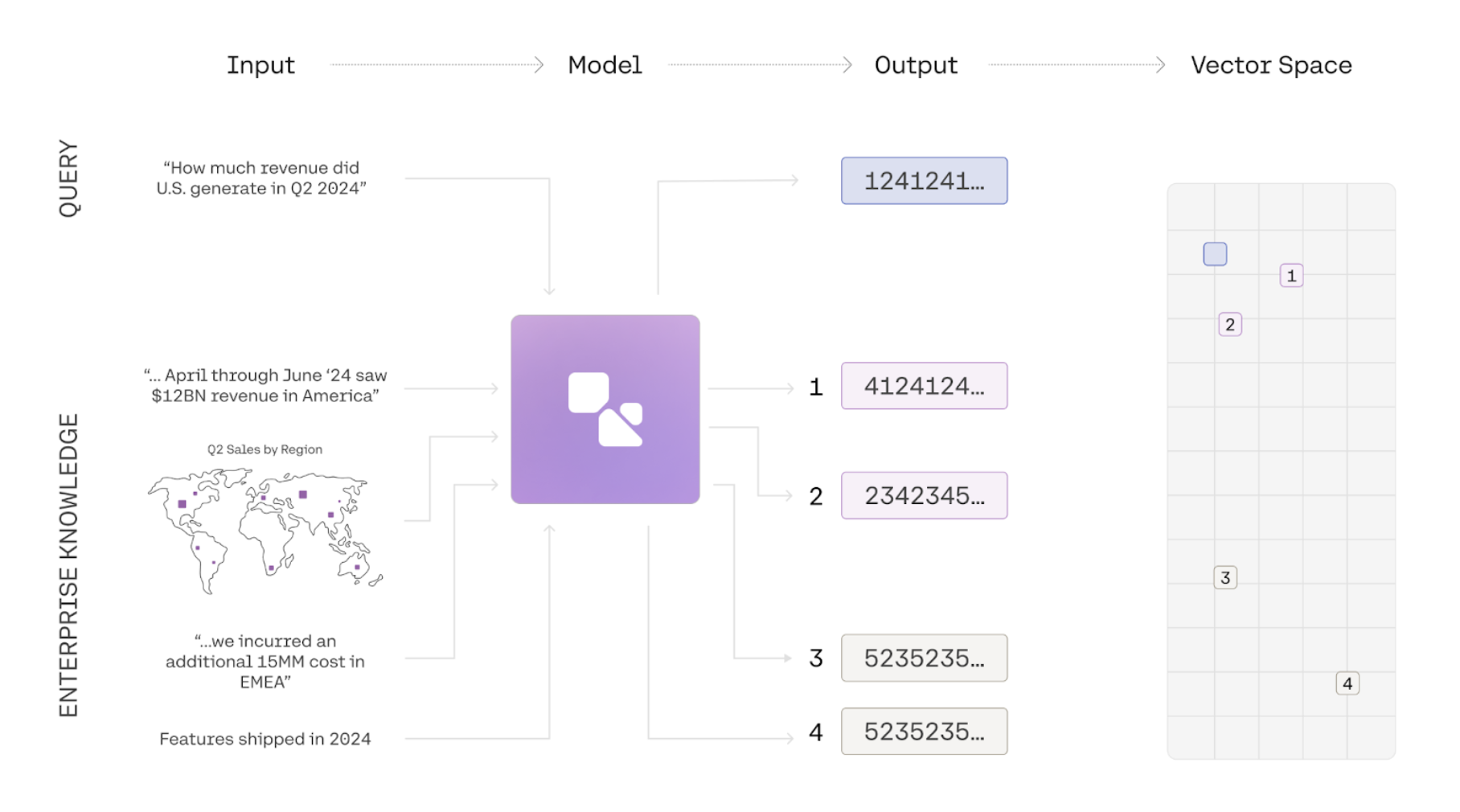 Embeddings are a way to represent the meaning of texts, images, or information as a list of numbers. Using a simple comparison function, we can then calculate a similarity score for two embeddings to figure out whether two pieces of information are about similar things. Common use-cases for embeddings include semantic search, clustering, and classification.
In the example below we use the `embed-v4.0` model to generate embeddings for 3 phrases and compare them using a similarity function. The two similar phrases have a high similarity score, and the embeddings for two unrelated phrases have a low similarity score:
```python PYTHON
import cohere
import numpy as np
co = cohere.ClientV2(api_key="YOUR_API_KEY")
# get the embeddings
phrases = ["i love soup", "soup is my favorite", "london is far away"]
model = "embed-v4.0"
input_type = "search_query"
res = co.embed(
texts=phrases,
model=model,
input_type=input_type,
output_dimension=1024,
embedding_types=["float"],
)
soup1, soup2, london = res.embeddings.float
# compare them
def calculate_similarity(a, b):
return np.dot(a, b) / (np.linalg.norm(a) * np.linalg.norm(b))
print(
f"For the following sentences:\n1: {phrases[0]}\n2: {phrases[1]}n\3: The similarity score is: {calculate_similarity(soup1, soup2):.2f}\n"
)
print(
f"For the following sentences:\n1: {phrases[0]}\n2: {phrases[2]}n\3: The similarity score is: {calculate_similarity(soup1, london):.2f}"
)
```
## The `input_type` parameter
Cohere embeddings are optimized for different types of inputs.
* When using embeddings for [semantic search](/docs/semantic-search), the search query should be embedded by setting `input_type="search_query"`
* When using embeddings for semantic search, the text passages that are being searched over should be embedded with `input_type="search_document"`.
* When using embedding for `classification` and `clustering` tasks, you can set `input_type` to either 'classification' or 'clustering' to optimize the embeddings appropriately.
* When `input_type='image'` for `embed-v3.0`, the expected input to be embedded is an image instead of text. If you use `input_type=images` with `embed-v4.0` it will default to `search_document`. We recommend using `search_document` when working with `embed-v4.0`.
## Multilingual Support
`embed-v4.0` is a best-in-class best-in-class multilingual model with support for over 100 languages, including Korean, Japanese, Arabic, Chinese, Spanish, and French.
```python PYTHON
import cohere
co = cohere.ClientV2(api_key="YOUR_API_KEY")
texts = [
"Hello from Cohere!",
"مرحبًا من كوهير!",
"Hallo von Cohere!",
"Bonjour de Cohere!",
"¡Hola desde Cohere!",
"Olá do Cohere!",
"Ciao da Cohere!",
"您好,来自 Cohere!",
"कोहेरे से नमस्ते!",
]
response = co.embed(
model="embed-v4.0",
texts=texts,
input_type="classification",
output_dimension=1024,
embedding_types=["float"],
)
embeddings = response.embeddings.float # All text embeddings
print(embeddings[0][:5]) # Print embeddings for the first text
```
## Image Embeddings
The Cohere Embedding platform supports image embeddings for `embed-v4.0` and the `embed-v3.0` family. There are two ways to access this functionality:
* Pass `image` to the `input_type` parameter. Here are the steps:
* Pass image to the `input_type` parameter
* Pass your image URL to the images parameter
* Pass your image URL to the new `images` parameter. Here are the steps:
* Pass in a input list of `dicts` with the key content
* content contains a list of `dicts` with the keys `type` and `image`
When using the `images` parameter the following restrictions exist:
* Pass `image` to the `input_type` parameter (as discussed above).
* Pass your image URL to the new `images` parameter.
Be aware that image embedding has the following restrictions:
* If `input_type='image'`, the `texts` field must be empty.
* The original image file type must be in a `png`, `jpeg`, `webp`, or `gif` format and can be up to 5 MB in size.
* The image must be base64 encoded and sent as a Data URL to the `images` parameter.
* Our API currently does not support batch image embeddings for `embed-v3.0` models. For `embed-v4.0`, however, you can submit up to 96 images.
When using the `inputs` parameter the following restrictions exist (note these restrictions apply to `embed-v4.0`):
* The maximum size of payload is 20mb
* All images larger than 2,458,624 pixels will be downsampled to 2,458,624 pixels
* All images smaller than 3,136 (56x56) pixels will be upsampled to 3,136 pixels
* `input_type` must be set to one of the following
* `search_query`
* `search_document`
* `classification`
* `clustering`
Here's a code sample using the `inputs` parameter:
```python PYTHON
import cohere
from PIL import Image
from io import BytesIO
import base64
co = cohere.ClientV2(api_key="YOUR_API_KEY")
# The model accepts input in base64 as a Data URL
def image_to_base64_data_url(image_path):
# Open the image file
with Image.open(image_path) as img:
image_format = img.format.lower()
buffered = BytesIO()
img.save(buffered, format=img.format)
# Encode the image data in base64
img_base64 = base64.b64encode(buffered.getvalue()).decode(
"utf-8"
)
# Create the Data URL with the inferred image type
data_url = f"data:image/{image_format};base64,{img_base64}"
return data_url
base64_url = image_to_base64_data_url("")
input = {
"content": [
{"type": "image_url", "image_url": {"url": base64_url}}
]
}
res = co.embed(
model="embed-v4.0",
embedding_types=["float"],
input_type="search_document",
inputs=[input],
output_dimension=1024,
)
res.embeddings.float
```
Here's a code sample using the `images` parameter:
```python PYTHON
import cohere
from PIL import Image
from io import BytesIO
import base64
co = cohere.ClientV2(api_key="YOUR_API_KEY")
# The model accepts input in base64 as a Data URL
def image_to_base64_data_url(image_path):
# Open the image file
with Image.open(image_path) as img:
# Create a BytesIO object to hold the image data in memory
buffered = BytesIO()
# Save the image as PNG to the BytesIO object
img.save(buffered, format="PNG")
# Encode the image data in base64
img_base64 = base64.b64encode(buffered.getvalue()).decode(
"utf-8"
)
# Create the Data URL and assumes the original image file type was png
data_url = f"data:image/png;base64,{img_base64}"
return data_url
processed_image = image_to_base64_data_url("")
res = co.embed(
images=[processed_image],
model="embed-v4.0",
embedding_types=["float"],
input_type="image",
)
res.embeddings.float
```
## Support for Mixed Content Embeddings
`embed-v4.0` supports text and content-rich images such as figures, slide decks, document screen shots (i.e. screenshots of PDF pages). This eliminates the need for complex text extraction or ETL pipelines. Unlike our previous `embed-v3.0` model family, `embed-v4.0` is capable of processing both images and texts together; the inputs can either be an image that contains both text and visual content, or text and images that youd like to compress into a single vector representation.
Here's a code sample illustrating how `embed-v4.0` could be used to work with fused images and texts like the following:

```python PYTHON
import cohere
import base64
# Embed an Images and Texts separately
with open("./content/finn.jpeg", "rb") as image_file:
encoded_string = base64.b64encode(image_file.read()).decode(
"utf-8"
)
# Step 3: Format as data URL
data_url = f"data:image/jpeg;base64,{encoded_string}"
example_doc = [
{"type": "text", "text": "This is a Scottish Fold Cat"},
{"type": "image_url", "image_url": {"url": data_url}},
] # This is where we're fusing text and images.
res = co.embed(
model="embed-v4.0",
inputs=[{"content": example_doc}],
input_type="search_document",
embedding_types=["float"],
output_dimension=1024,
).embeddings.float_
# This will return a list of length 1 with the texts and image in a combined embedding
res
```
## Matryoshka Embeddings
Matryoshka learning creates embeddings with coarse-to-fine representation within a single vector; `embed-v4.0` supports multiple output dimensions in the following values: `[256,512,1024,1536]`. To access this, you specify the parameter `output_dimension` when creating the embeddings.
```python PYTHON
texts = ["hello"]
response = co.embed(
model="embed-v4.0",
texts=texts,
output_dimension=1024,
input_type="classification",
embedding_types=["float"],
).embeddings
# print out the embeddings
response.float # returns a vector that is 1024 dimensions
```
## Compression Levels
The Cohere embeddings platform supports compression. The Embed API features an `embeddings_types` parameter which allows the user to specify various ways of compressing the output.
The following embedding types are supported:
* `float`
* `int8`
* `unint8`
* `binary`
* `ubinary`
We recommend being explicit about the `embedding type(s)`. To specify an embedding types, pass one of the types from the list above in as list containing a string:
```python PYTHON
res = co.embed(
texts=["hello_world"],
model="embed-v4.0",
input_type="search_document",
embedding_types=["int8"],
)
```
You can specify multiple embedding types in a single call. For example, the following call will return both `int8` and `float` embeddings:
```python PYTHON
res = co.embed(
texts=phrases,
model="embed-v4.0",
input_type=input_type,
embedding_types=["int8", "float"],
)
res.embeddings.int8 # This contains your int8 embeddings
res.embeddings.float # This contains your float embeddings
```
### A Note on Bits and Bytes
When doing binary compression, there's a subtlety worth pointing out: because Cohere packages *bits* as *bytes* under the hood, the actual length of the vector changes. This means that if you have a vector of 1024 binary embeddings, it will become `1024/8 => 128` bytes, and this might be confusing if you run `len(embeddings)`. This code shows how to unpack it so it works if you're using a vector database that does not take bytes for binary:
```python PYTHON
res = co.embed(
model="embed-v4.0",
texts=["hello"],
input_type="search_document",
embedding_types=["ubinary"],
output_dimension=1024,
)
print(
f"Embed v4 Binary at 1024 dimensions results in length {len(res.embeddings.ubinary[0])}"
)
query_emb_bin = np.asarray(res.embeddings.ubinary[0], dtype="uint8")
query_emb_unpacked = np.unpackbits(query_emb_bin, axis=-1).astype(
"int"
)
query_emb_unpacked = 2 * query_emb_unpacked - 1
print(
f"Embed v4 Binary at 1024 unpacked will have dimensions:{len(query_emb_unpacked)}"
)
```
Embeddings are a way to represent the meaning of texts, images, or information as a list of numbers. Using a simple comparison function, we can then calculate a similarity score for two embeddings to figure out whether two pieces of information are about similar things. Common use-cases for embeddings include semantic search, clustering, and classification.
In the example below we use the `embed-v4.0` model to generate embeddings for 3 phrases and compare them using a similarity function. The two similar phrases have a high similarity score, and the embeddings for two unrelated phrases have a low similarity score:
```python PYTHON
import cohere
import numpy as np
co = cohere.ClientV2(api_key="YOUR_API_KEY")
# get the embeddings
phrases = ["i love soup", "soup is my favorite", "london is far away"]
model = "embed-v4.0"
input_type = "search_query"
res = co.embed(
texts=phrases,
model=model,
input_type=input_type,
output_dimension=1024,
embedding_types=["float"],
)
soup1, soup2, london = res.embeddings.float
# compare them
def calculate_similarity(a, b):
return np.dot(a, b) / (np.linalg.norm(a) * np.linalg.norm(b))
print(
f"For the following sentences:\n1: {phrases[0]}\n2: {phrases[1]}n\3: The similarity score is: {calculate_similarity(soup1, soup2):.2f}\n"
)
print(
f"For the following sentences:\n1: {phrases[0]}\n2: {phrases[2]}n\3: The similarity score is: {calculate_similarity(soup1, london):.2f}"
)
```
## The `input_type` parameter
Cohere embeddings are optimized for different types of inputs.
* When using embeddings for [semantic search](/docs/semantic-search), the search query should be embedded by setting `input_type="search_query"`
* When using embeddings for semantic search, the text passages that are being searched over should be embedded with `input_type="search_document"`.
* When using embedding for `classification` and `clustering` tasks, you can set `input_type` to either 'classification' or 'clustering' to optimize the embeddings appropriately.
* When `input_type='image'` for `embed-v3.0`, the expected input to be embedded is an image instead of text. If you use `input_type=images` with `embed-v4.0` it will default to `search_document`. We recommend using `search_document` when working with `embed-v4.0`.
## Multilingual Support
`embed-v4.0` is a best-in-class best-in-class multilingual model with support for over 100 languages, including Korean, Japanese, Arabic, Chinese, Spanish, and French.
```python PYTHON
import cohere
co = cohere.ClientV2(api_key="YOUR_API_KEY")
texts = [
"Hello from Cohere!",
"مرحبًا من كوهير!",
"Hallo von Cohere!",
"Bonjour de Cohere!",
"¡Hola desde Cohere!",
"Olá do Cohere!",
"Ciao da Cohere!",
"您好,来自 Cohere!",
"कोहेरे से नमस्ते!",
]
response = co.embed(
model="embed-v4.0",
texts=texts,
input_type="classification",
output_dimension=1024,
embedding_types=["float"],
)
embeddings = response.embeddings.float # All text embeddings
print(embeddings[0][:5]) # Print embeddings for the first text
```
## Image Embeddings
The Cohere Embedding platform supports image embeddings for `embed-v4.0` and the `embed-v3.0` family. There are two ways to access this functionality:
* Pass `image` to the `input_type` parameter. Here are the steps:
* Pass image to the `input_type` parameter
* Pass your image URL to the images parameter
* Pass your image URL to the new `images` parameter. Here are the steps:
* Pass in a input list of `dicts` with the key content
* content contains a list of `dicts` with the keys `type` and `image`
When using the `images` parameter the following restrictions exist:
* Pass `image` to the `input_type` parameter (as discussed above).
* Pass your image URL to the new `images` parameter.
Be aware that image embedding has the following restrictions:
* If `input_type='image'`, the `texts` field must be empty.
* The original image file type must be in a `png`, `jpeg`, `webp`, or `gif` format and can be up to 5 MB in size.
* The image must be base64 encoded and sent as a Data URL to the `images` parameter.
* Our API currently does not support batch image embeddings for `embed-v3.0` models. For `embed-v4.0`, however, you can submit up to 96 images.
When using the `inputs` parameter the following restrictions exist (note these restrictions apply to `embed-v4.0`):
* The maximum size of payload is 20mb
* All images larger than 2,458,624 pixels will be downsampled to 2,458,624 pixels
* All images smaller than 3,136 (56x56) pixels will be upsampled to 3,136 pixels
* `input_type` must be set to one of the following
* `search_query`
* `search_document`
* `classification`
* `clustering`
Here's a code sample using the `inputs` parameter:
```python PYTHON
import cohere
from PIL import Image
from io import BytesIO
import base64
co = cohere.ClientV2(api_key="YOUR_API_KEY")
# The model accepts input in base64 as a Data URL
def image_to_base64_data_url(image_path):
# Open the image file
with Image.open(image_path) as img:
image_format = img.format.lower()
buffered = BytesIO()
img.save(buffered, format=img.format)
# Encode the image data in base64
img_base64 = base64.b64encode(buffered.getvalue()).decode(
"utf-8"
)
# Create the Data URL with the inferred image type
data_url = f"data:image/{image_format};base64,{img_base64}"
return data_url
base64_url = image_to_base64_data_url("")
input = {
"content": [
{"type": "image_url", "image_url": {"url": base64_url}}
]
}
res = co.embed(
model="embed-v4.0",
embedding_types=["float"],
input_type="search_document",
inputs=[input],
output_dimension=1024,
)
res.embeddings.float
```
Here's a code sample using the `images` parameter:
```python PYTHON
import cohere
from PIL import Image
from io import BytesIO
import base64
co = cohere.ClientV2(api_key="YOUR_API_KEY")
# The model accepts input in base64 as a Data URL
def image_to_base64_data_url(image_path):
# Open the image file
with Image.open(image_path) as img:
# Create a BytesIO object to hold the image data in memory
buffered = BytesIO()
# Save the image as PNG to the BytesIO object
img.save(buffered, format="PNG")
# Encode the image data in base64
img_base64 = base64.b64encode(buffered.getvalue()).decode(
"utf-8"
)
# Create the Data URL and assumes the original image file type was png
data_url = f"data:image/png;base64,{img_base64}"
return data_url
processed_image = image_to_base64_data_url("")
res = co.embed(
images=[processed_image],
model="embed-v4.0",
embedding_types=["float"],
input_type="image",
)
res.embeddings.float
```
## Support for Mixed Content Embeddings
`embed-v4.0` supports text and content-rich images such as figures, slide decks, document screen shots (i.e. screenshots of PDF pages). This eliminates the need for complex text extraction or ETL pipelines. Unlike our previous `embed-v3.0` model family, `embed-v4.0` is capable of processing both images and texts together; the inputs can either be an image that contains both text and visual content, or text and images that youd like to compress into a single vector representation.
Here's a code sample illustrating how `embed-v4.0` could be used to work with fused images and texts like the following:

```python PYTHON
import cohere
import base64
# Embed an Images and Texts separately
with open("./content/finn.jpeg", "rb") as image_file:
encoded_string = base64.b64encode(image_file.read()).decode(
"utf-8"
)
# Step 3: Format as data URL
data_url = f"data:image/jpeg;base64,{encoded_string}"
example_doc = [
{"type": "text", "text": "This is a Scottish Fold Cat"},
{"type": "image_url", "image_url": {"url": data_url}},
] # This is where we're fusing text and images.
res = co.embed(
model="embed-v4.0",
inputs=[{"content": example_doc}],
input_type="search_document",
embedding_types=["float"],
output_dimension=1024,
).embeddings.float_
# This will return a list of length 1 with the texts and image in a combined embedding
res
```
## Matryoshka Embeddings
Matryoshka learning creates embeddings with coarse-to-fine representation within a single vector; `embed-v4.0` supports multiple output dimensions in the following values: `[256,512,1024,1536]`. To access this, you specify the parameter `output_dimension` when creating the embeddings.
```python PYTHON
texts = ["hello"]
response = co.embed(
model="embed-v4.0",
texts=texts,
output_dimension=1024,
input_type="classification",
embedding_types=["float"],
).embeddings
# print out the embeddings
response.float # returns a vector that is 1024 dimensions
```
## Compression Levels
The Cohere embeddings platform supports compression. The Embed API features an `embeddings_types` parameter which allows the user to specify various ways of compressing the output.
The following embedding types are supported:
* `float`
* `int8`
* `unint8`
* `binary`
* `ubinary`
We recommend being explicit about the `embedding type(s)`. To specify an embedding types, pass one of the types from the list above in as list containing a string:
```python PYTHON
res = co.embed(
texts=["hello_world"],
model="embed-v4.0",
input_type="search_document",
embedding_types=["int8"],
)
```
You can specify multiple embedding types in a single call. For example, the following call will return both `int8` and `float` embeddings:
```python PYTHON
res = co.embed(
texts=phrases,
model="embed-v4.0",
input_type=input_type,
embedding_types=["int8", "float"],
)
res.embeddings.int8 # This contains your int8 embeddings
res.embeddings.float # This contains your float embeddings
```
### A Note on Bits and Bytes
When doing binary compression, there's a subtlety worth pointing out: because Cohere packages *bits* as *bytes* under the hood, the actual length of the vector changes. This means that if you have a vector of 1024 binary embeddings, it will become `1024/8 => 128` bytes, and this might be confusing if you run `len(embeddings)`. This code shows how to unpack it so it works if you're using a vector database that does not take bytes for binary:
```python PYTHON
res = co.embed(
model="embed-v4.0",
texts=["hello"],
input_type="search_document",
embedding_types=["ubinary"],
output_dimension=1024,
)
print(
f"Embed v4 Binary at 1024 dimensions results in length {len(res.embeddings.ubinary[0])}"
)
query_emb_bin = np.asarray(res.embeddings.ubinary[0], dtype="uint8")
query_emb_unpacked = np.unpackbits(query_emb_bin, axis=-1).astype(
"int"
)
query_emb_unpacked = 2 * query_emb_unpacked - 1
print(
f"Embed v4 Binary at 1024 unpacked will have dimensions:{len(query_emb_unpacked)}"
)
```