

Fine-tuning Cohere Models on Amazon SageMaker
Fine-tuning Cohere Models on Amazon SageMaker
Cohere’s fine-tuning feature was deprecated on September 15, 2025
In this section, you’ll find information on how to fine-tune Cohere’s generative models on AWS Sagemaker.
Sagemaker customers can fine-tune Cohere’s Command R model for their use cases.
Customers can kick off fine-tuning jobs by completing the data preparation and validation steps through the AWS Console. This is useful for customers who don’t need or don’t want to create a fine-tuning job programmatically via the Cohere AWS SDK, preferring to opt for the ease and simplicity of a web interface instead.
Please see our jupyter notebook for step by step instructions.
Preparing your data
Before a fine-tuning job can be started, users must upload a dataset with training and (optionally) evaluation data. The structure of the data for fine-tuning on Amazon Sagemaker should be jsonl. Read more about preparing the training data for chat fine-tuning in our docs: Preparing the Chat Fine-tuning Data.
Data format
You’ll need your input data to be in jsonl file, in our chat format. Please see Preparing the Chat Fine-tuning Data for more details.
jsonl
Starting the Chat Fine-tuning
After uploading the dataset, the fine-tuning job can begin.
The Sagemaker fine-tuning job requires:
- an s3 path to the uploaded train dataset
- an optional s3 path to the eval dataset
In this section, we will walk through how you can start training a fine-tuned model for Generate with both the AWS Console and the Cohere AWS SDK.
AWS Console
Creating a fine-tuned model for Generate via the AWS Console consists of a few simple steps, discussed below.
Choose a Custom Model
Input your data
In the Input your data section, you can provide the S3 link to the training dataset file and, optionally, the validation dataset file. Your data should be in jsonl format. You can also set the following hyperparameters to use in training.
Set Your Hyperparameters
We allow you to specify the following hyperparameters for Command-R.
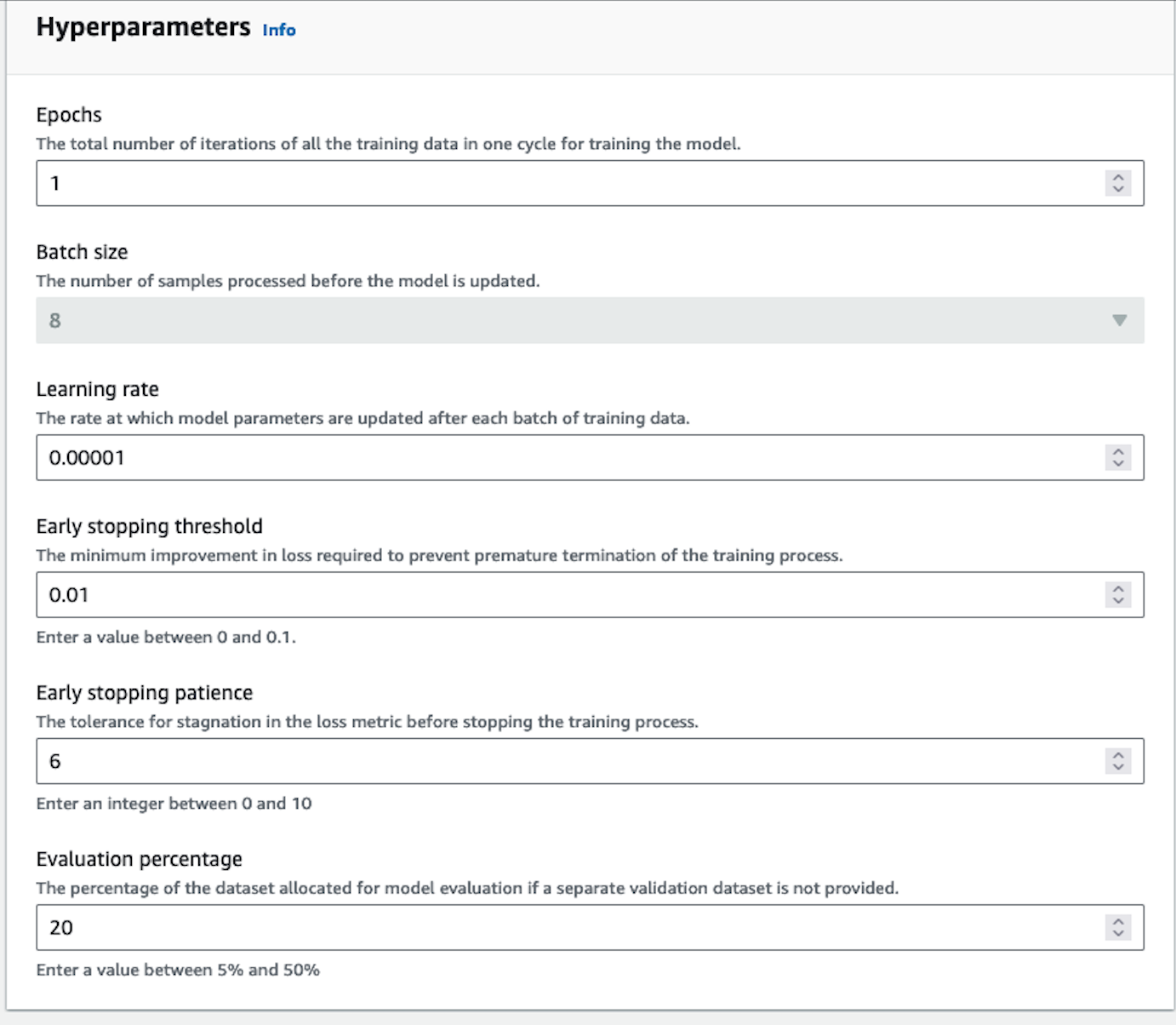
We suggest starting your training without setting any specific parameters. That said, here are some guidelines for resolving certain issues you might encounter:
- If the model outputs are too similar or lack diversity, reduce the epoch number by 1 or 2.
- If the model does not appear to be converging, increase the learning rate.
- If you want to change your batch size, you can use 8, 16 or 24 for Command Light. Command has a batch size of 8.
Output your data
In the Output data section, enter the Amazon S3 location in which Amazon Sagemaker should save the output of the job. Amazon Sagemaker stores the training loss metrics and validation loss metrics for each epoch in separate files in the location that you specify.
Start Training
Choose ‘Create Fine-tuning job’ to begin the job.
You will be able to see your training job overview as illustrated below.
You will receive an email notification when the fine-tuning job has completed training. You can explore the evaluation metrics using the AWS Console. Learn more here.
Fine-tuning Job Statuses
As your fine-tuning job runs, it will progress through various stages. The following table describes the meaning of the various status messages you might encounter. You can also stop your fine-tuning job while it is in progress.
Calling the Fine-tuned Model
Cohere’s AWS SDK
In addition to the Sagemaker UI, customers are also able to create programatic fine-tuning job using the Cohere AWS SDK. The SDK exposes methods to create fine-tuning jobs, monitor progress, and invoke the fine-tuned model. Please see the following ipython notebooks:
Start a fine-tuning job
Please see the notebooks above for full import paths, arns, and explanations.