

Model Vault Overview
Model Vault is a Cohere-managed inference environment for deploying and serving Cohere models in an isolated, single-tenant setup. It provides dedicated infrastructure with full control over model selection, scaling, and performance monitoring, without you operating the underlying serving stack.
Because your infrastructure isn’t shared with other tenants, you get the security and isolation of private hosting with the convenience of an API: no noisy neighbors, no rate limits, and predictable performance at scale.
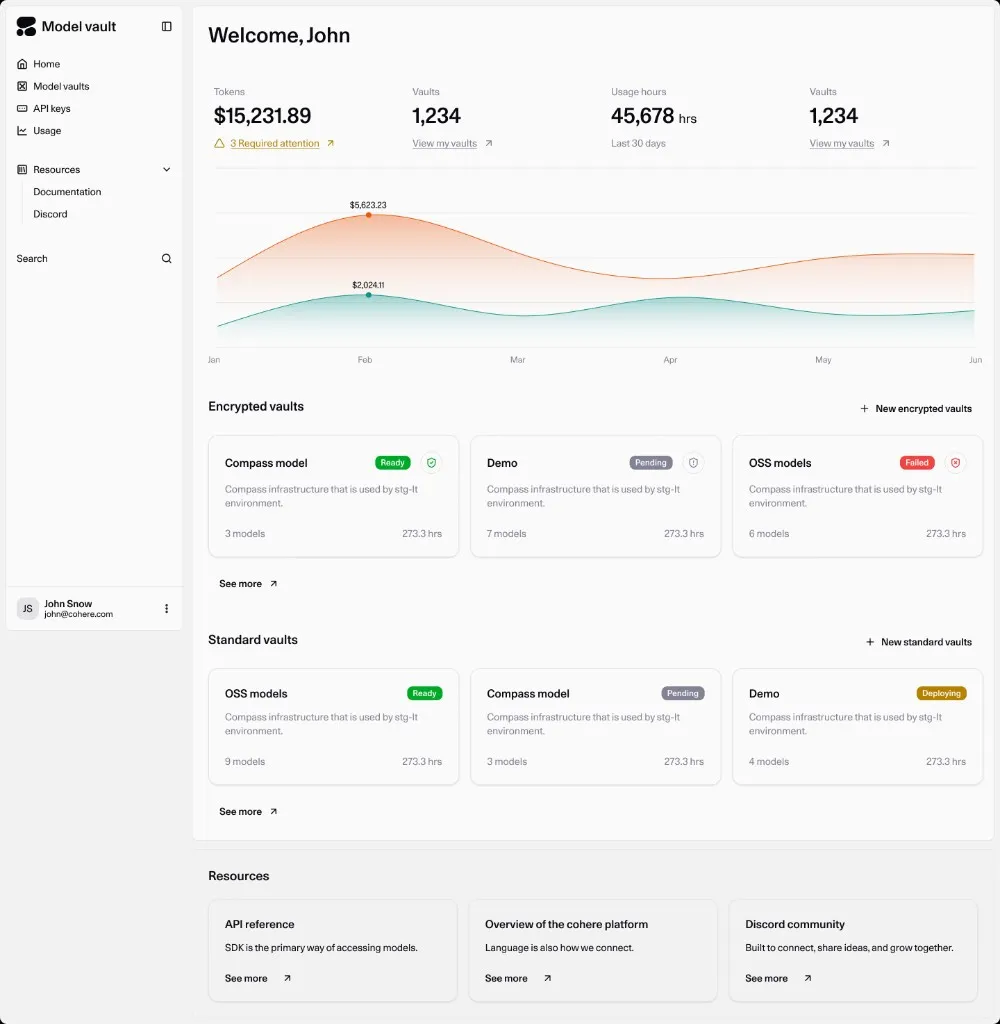
You manage all of your vaults in one place from the Model Vault app, where you can track spend, usage hours, and activity across them. Model Vault comes in two types, Standard and Encrypted. The deployment and management experience is the same; the only difference is the level of data protection (see how they compare below).
Why Model Vault

Dedicated and single-tenant
Your load balancer, serving middleware, inference servers, and GPU accelerators are dedicated to you, so there are no noisy neighbors competing for capacity.

Fully managed
Create a vault from the Model Vault app and let Cohere handle maintenance, deployments, updates, and scaling. There’s no serving stack for you to operate.

Models and performance tiers
Pick a model and a size tier (S, M, L, XL) to match your latency and throughput needs.

Elastic, unthrottled capacity
Set a minimum and maximum replica range (1–25 per model), with autoscaling available. You get dedicated throughput with no rate limits, and only pay for what you use.

Built for production
Real-time monitoring of request rates, latency, token throughput, and GPU utilization helps you tune capacity for production workloads.

Standalone or with North
Call a vault directly over the API, or use it as the inference backend for North.
How it works
Create a vault
In the Model Vault app, create a vault: name it, choose a model and performance tier, and set its replica range.
Get your endpoint
Once the vault is Ready, copy its endpoint URL and model name from the vault’s details page (see Managing Vaults).
Call it with the Cohere SDK
Point the SDK’s base_url at your vault endpoint and send chat, embed, or rerank requests (see Calling a Vault over the API).
Two types of vault

Standard Vault
A Cohere-managed, single-tenant deployment with data protected in transit and at rest. Best when you want dedicated inference without managing the serving stack.

Encrypted Vault
Everything in a Standard Vault, plus confidential computing: prompts, responses, and everything in between stay protected end to end inside hardware-backed trusted execution environments, with verifiable remote attestation. Best for regulated or highly sensitive workloads.
How they compare
How this documentation is organized
Start with the shared sections that cover the day-to-day flow for every vault, regardless of type:
- Deploy & manage: Home Page, Creating a Vault, and Managing Vaults.
- Operate & observe: Monitoring.
Then dive into the section for your vault type for what’s specific to it, including how to call it over the API:
- Standard Vault: supported models, calling the API (Cohere SDK, raw HTTP, or OpenAI-compatible), and pricing.
- Encrypted Vault: supported models, calling the API through the attestation-verifying Cohere OHTTP proxy, the confidential-computing deep dive (confidential computing, security model, remote attestation, key management, compliance), and pricing.
And to connect a vault to North:
- Model Vault with North: use a vault as the inference backend for North.
Get started
- New to Model Vault? Start with the Quickstart.
- Need confidential computing? See Encrypted Vaults.